
Your computer or phone shouldn’t slow down during simple tasks like browsing or streaming. Yet it happens all the time. Often, the culprit is resource-hogging background processes. These are hidden apps or services running quietly, then using up CPU, memory, disk, or battery without asking.
The good news is you can spot them quickly. Once you know what’s heavy, you can stop it safely, then get your device back to smooth performance. In 2026, users still complain about “death by 1000 tasks” on Windows, plus fast battery drain on phones, and overheating during updates or syncing.
Ready to take control? Let’s start with the warning signs you can catch right away.
Spot the Warning Signs of Sneaky Resource Hogs
Resource hogs show up like an uninvited guest who keeps getting snacks. You might not notice at first, but the room starts to feel off. Usually, the symptoms point to processes in the background, not a failing hard drive or weak hardware.
Here are the most common signs, with quick examples you can use immediately:
- High CPU spikes while nothing “big” is running: the cursor lags, pages take forever, or video stutters when you switch tabs.
- Sudden fan noise or the device feels hot: heat builds fast during “idle” time (like after you close a browser).
- Battery drops faster than expected: on a phone, you lose power even with the screen off.
- Slow app switching or brief freezes: apps hang for a few seconds, then catch up.
- Memory alerts or constant swapping: apps reload, tabs refresh, or Windows stutters under pressure.
- Unexpected pop-ups or repeated prompts: “update required,” “scan needed,” or strange permission requests.
If you’ve seen these patterns on forums in 2026, you’re not alone. Many complaints boil down to background sync, antivirus scans, chat app updates, and launcher services that keep running.
If the lag and heat happen together, start with background CPU and disk use. Hardware issues usually show up differently.
One quick sanity check: when the problem starts, note the exact moment. Then open your monitoring tool right away. That timing helps you catch the hog while it’s still active.
Why Fans Spin Wild and Batteries Die Fast
Overheating and fast battery drain are the clearest “red light” signals. A background process can push CPU usage hard, then the cooling system reacts. On laptops, fans ramp up because sustained load creates heat.
Common causes include antivirus real-time scans, Windows or app updates, and cloud syncing (like file indexing). For phones, background refresh and location checks can also drain power, especially when apps sync constantly.
Here’s the simple math: if a hog uses 50% of CPU, it can nearly double the work your system does during the same time window. That extra work means more heat, more power draw, and a shorter battery life. Even short spikes can add up across a day.
Before you install tools, do three first checks:
- Look for recently started downloads, updates, or “syncing” indicators.
- Close apps you barely used (especially browsers with lots of tabs).
- Reboot once, then check whether the issue returns.
If the same process keeps coming back after reboot, it’s time to hunt it down.
Lag and Freezes That Make You Want to Scream
Lag feels personal. One minute your multitasking is fine, then everything stalls when you click or switch apps. That usually points to memory pressure or disk I/O, not just a slow connection.
A background process can cause:
- Video stutter (CPU spikes or dropped frames).
- App freezing (a thread stuck waiting for disk or network).
- Browser weirdness (too many tabs, plus sync and extensions fighting in the background).
Many people in 2026 report the same “usual suspects.” Browser tabs with heavy scripts, cloud sync tools, and chat apps with constant updates are frequent repeat offenders. Sometimes the real issue is a process that keeps a lock on disk, so other apps wait.
Also, don’t confuse resource hogs with a full RAM situation. Full RAM can also create freezes, but you’ll usually see sustained memory saturation. With hogs, you often see brief bursts that align with the stutter.
Now that you know the symptoms, it’s time to find the exact process.
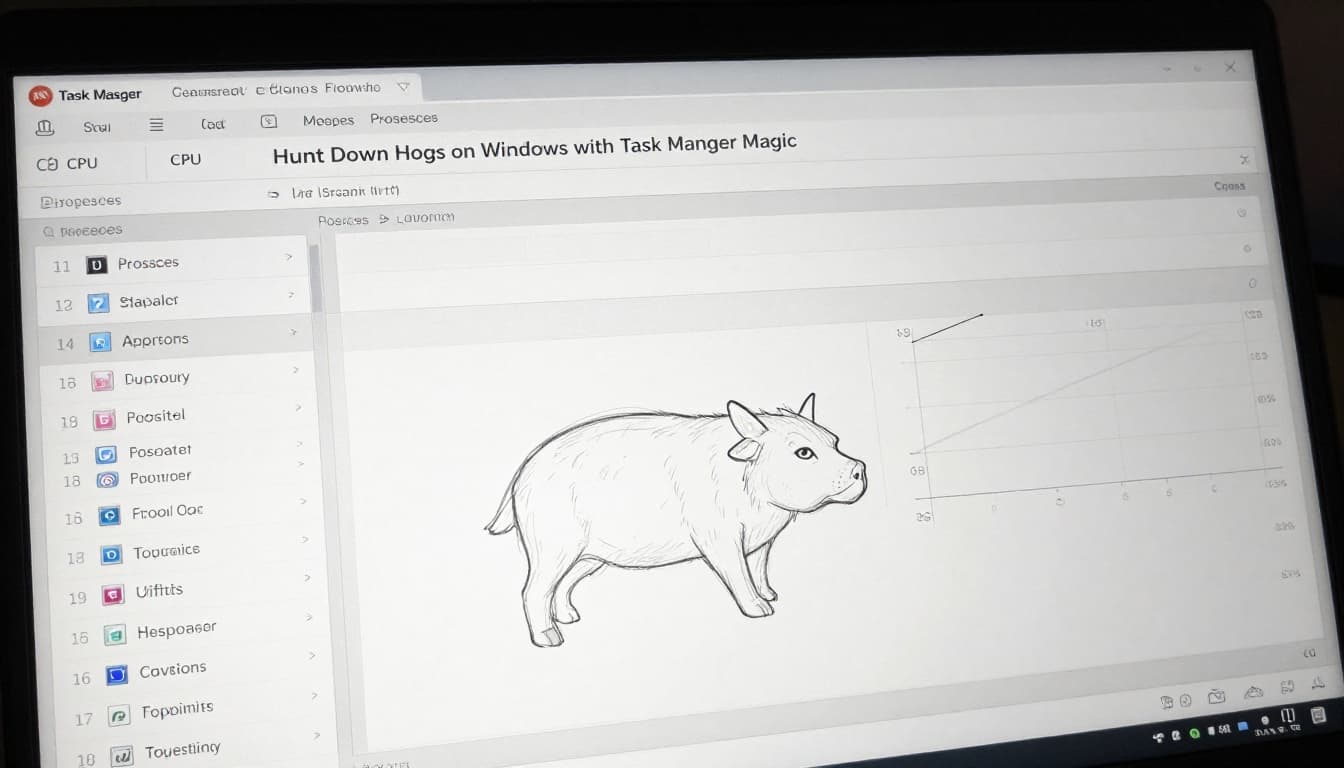
Hunt Down Hogs on Windows with Task Manager Magic
Windows is great for this because you have live tools built in. You don’t need fancy software to spot the usual background offenders.
Start by opening Task Manager: press Ctrl + Shift + Esc. Then focus on the tabs that show live load. CPU tells you “who’s busy.” Memory tells you “who’s holding onto stuff.” Disk tells you “who’s waiting and blocking.”
For background CPU problems, Microsoft’s troubleshooting guidance is a solid reference for what “high CPU over time” usually means: Guidance for troubleshooting high CPU usage.
Here’s the fastest path to identify and stop resource hogs safely:
- Open Task Manager (Ctrl + Shift + Esc).
- Go to Processes.
- Click the CPU column to sort highest first.
- Watch whether CPU drops after you close the app you’re using.
- If one process stays high, right-click it and choose End task (skip obvious system ones).
- Check Memory and Disk tabs if CPU looks normal.
- Open the Startup tab and disable things you don’t need at boot.
If you want a second view on memory hogs, this walkthrough can help you interpret Task Manager’s signals: Identify and fix high memory usage.
One 2026 Windows 11 note: some background behaviors are controlled by Settings. If you see an app that won’t stop, check background permissions, then restrict it in Settings.
Also, don’t “hunt” blindly. Killing system processes can break features. When you’re unsure, search the process name first, then decide.
Dive Deeper with Resource Monitor
Task Manager tells you what’s heavy. Resource Monitor tells you what it’s doing.
To open it, search for “Resource Monitor” or use Run (Win + R), then type resmon. In Resource Monitor, watch:
- CPU (which process threads spike)
- Memory (what’s consuming and what’s waiting)
- Disk (read/write activity)
- Network (outgoing connections and delays)
This is especially useful when CPU doesn’t look crazy but the system still feels slow. For example, disk I/O stuck at a high level can create “lag even when CPU is fine.”
Also, use Resource Monitor to catch network-heavy background apps. Maybe a chat app keeps reconnecting, or a sync tool uploads files repeatedly.
A simple rule works well: if you find one process that matches both the timing and the bottleneck, you’ve likely found the hog.
Now, let’s switch to Mac and Linux tools that work in a similar spirit.
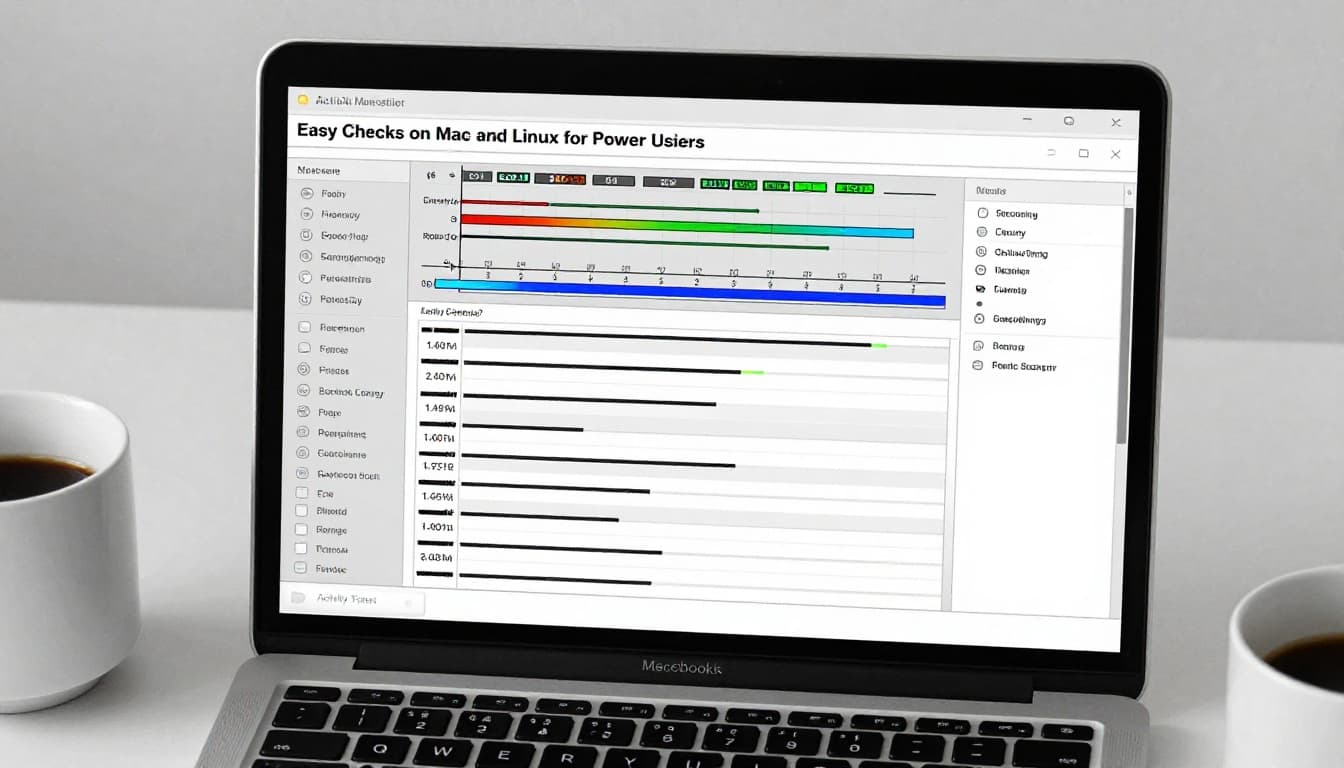
Easy Checks on Mac and Linux for Power Users
On Mac and Linux, you still hunt by process. You just use different tools. The goal stays the same: find the background task that spikes CPU, drains energy, or hammers disk.
Activity Monitor Tricks on Your Mac
Open Activity Monitor (Applications > Utilities). Then sort by what matches your symptoms:
- If you see heat or fan noise, sort by CPU.
- If you care about battery, check the Energy tab.
- If you see slow launches, watch Disk.
Apple also documents what the tabs show, so you can map what you see to the right process view: View information about Mac processes in Activity Monitor.
When you find the culprit, you can click it, then press the X button to quit. If the app resists, wait a moment and check again. Sometimes the process is restarting because it’s tied to a login item.
Also check startup items. If a “resource hog” only appears right after login, remove it from Login Items in System Settings.
htop and btop Mastery on Linux
Linux gives you powerful monitoring, but the best tools are typically interactive. Two favorites are htop and btop. In 2026, many power users choose btop because graphs are easy to read.
If you want a guide that walks through monitoring with btop++, check: How to Monitor Linux System Resources with btop++.
Before you run anything, install the tools you want. Then use them like this:
- Sort by CPU to find runaway tasks.
- Use the process list tree to spot “families” that spawn children.
- Kill only when you’re sure which process belongs to you.
Quick command cheat sheet:
| Command | Use it when |
|---|---|
sudo apt update | You want fresh packages |
sudo apt install htop | Install htop |
sudo apt install btop | Install btop |
htop | Quick terminal monitoring |
btop | Graph-heavy monitoring |
Be careful with sudo. Don’t kill system-owned processes by mistake. If a process looks like a service you don’t recognize, pause and research the name first.
Next, let’s handle the biggest real-world battery complaints on Android and iOS.
Catch Background Drains on Android and iOS Phones
Phones hide their CPU and memory details more than desktops. Still, you can spot background drains using battery screens and app permissions.
On Android, your best friend is battery usage by app. On iOS, it’s the Battery screen plus background refresh controls.
Android’s Hidden Battery Eaters Revealed
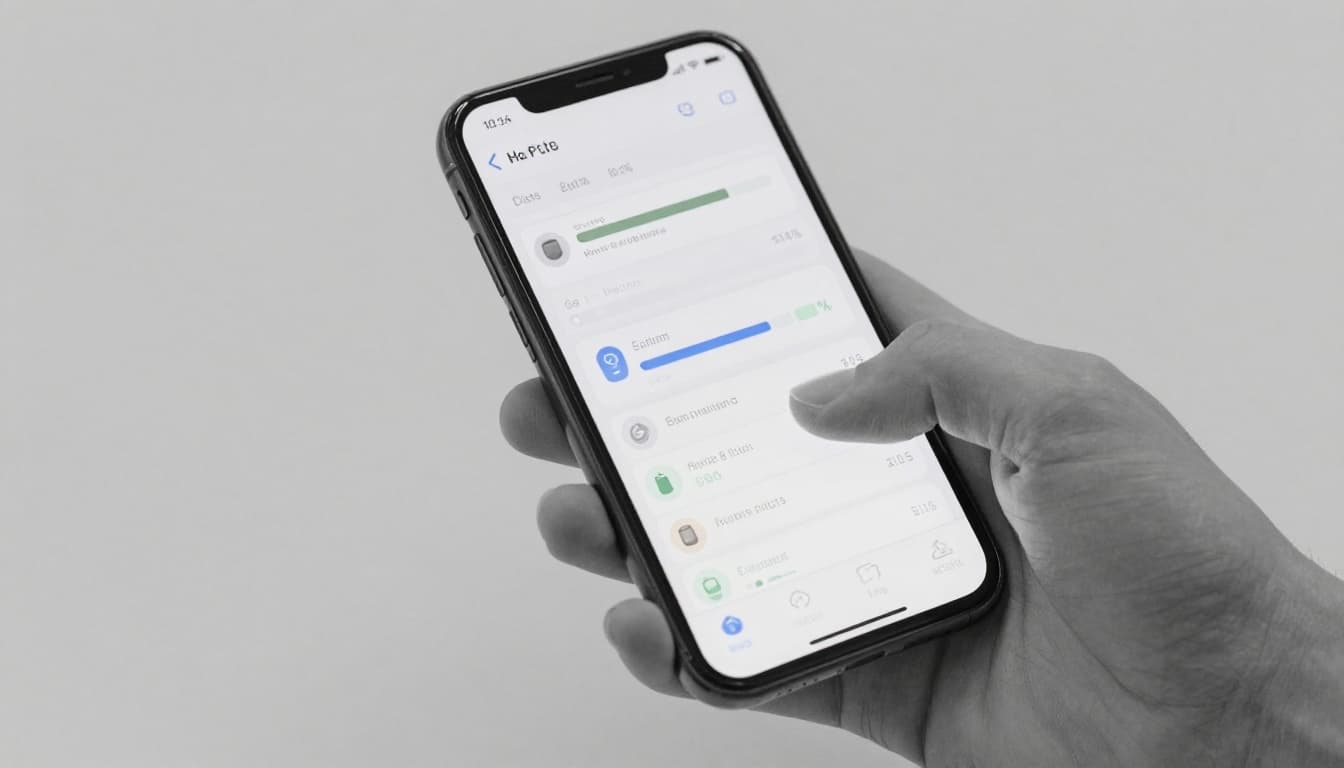
On Android, open: Settings > Battery > Battery usage.
Then check which apps used power while the screen was off. Those are your top background-process suspects. Also look for apps that constantly refresh, like social apps, cloud storage, and browser variants.
In 2026 Android builds, Developer options can show running services. If you’re comfortable, you can use it to identify background CPU use. But don’t start ending random services. Instead, restrict what you can through app settings.
You can also tighten background behavior using built-in restrictions. For background tasks, it’s helpful to understand why background work exists and why it isn’t always “bad,” especially for real services. This explainer can help set the context for what apps do in the background: Battery Optimization for Background Tasks 2026.
iOS Battery Breakdown and Limits
On iOS, use Settings > Battery. It shows which apps consumed battery and how much activity happened in the background.
Then check two controls:
- Low Power Mode (use it to confirm whether background activity is the issue)
- Background App Refresh (turn it off per app if you don’t need updates)
Also consider offloading unused apps if you rarely use them. That can reduce background activity tied to large installs and cached processes.
One more 2026-friendly idea: review background permission usage. If an app keeps accessing location or sensors without a reason, that often matches battery drain patterns.
Now you’ve found likely hogs. Next step: stop them safely, then prevent repeat offenders.
Safely Stop the Hogs Without Breaking Your Device
Stopping resource hogs is easy. Breaking your system is also easy. So follow a safer pattern: act, test, then undo if needed.
First, prioritize user apps over system services. On Windows, don’t end tasks like core OS components. On Mac, avoid quitting system-level processes and only target app processes you recognize. On Linux, killing the wrong daemon can break networking or audio.
Then do a quick reboot test:
- Stop the suspect process or disable its startup behavior.
- Reboot once.
- Use your device for 15 to 30 minutes.
- If performance stays fixed, you won. If not, the hog might be a different process.
If the hog returns immediately after a reboot, it’s usually tied to startup items, scheduled tasks, or auto-updates.
For safe-to-kill examples, think in categories, not names. On Windows, you can often end browser tabs, chat updaters, and launcher helpers. On Mac, you can quit apps stuck in indexing or heavy sync. On Linux, you can stop user apps first, then services you started, not random system daemons. On phones, you can restrict background refresh instead of force-stopping repeatedly.
Finally, prevention beats constant hunting:
- Reduce app startup.
- Keep browsers under control (fewer tabs).
- Update OS and apps, then re-check behavior.
A good pro tip: do a quick check once a week, especially after Windows updates or a major phone app update.
Conclusion
You spotted it the right way: by recognizing the symptoms of resource-hogging background processes before the lag and heat get worse. When you match timing with a monitoring tool, the culprit usually becomes obvious fast.
Try one tool today, then repeat after your next update. If you want a quick win, start with Task Manager on Windows or Battery views on your phone.
What process keeps surprising you on your device, and what did you do about it?