If you leave your router login on admin/admin (or something close), you’re making it easy for attackers. Early 2025 surveys found 86% of homes keep the default admin password unchanged, which leaves a huge door open for data theft or even a network takeover. As a result, your Wi-Fi can get slow, your devices can get targeted, and you may not notice right away.
A default router login is the factory username and password printed on the router label or listed in the quick-start guide. It’s meant for setup, then it should be changed immediately. However, most people never touch it, and that’s why the same tried-and-true logins keep showing up in real-world attacks.
Here’s what you’ll do next, step by step, in a way that works for common brands like Netgear, TP-Link, Linksys, Asus, and Google Nest Wifi. You’ll learn where to find the current login page, how to replace the default username and password safely, and how to handle common issues like forgetting the new details or seeing an error after the change. Best practices matter too, like using a strong password and double-checking settings after you sign back in.
Next, you’ll locate your router’s login page and confirm you’re changing the right account.
The Real Dangers of Sticking with Factory Router Logins
Sticking with the factory router login feels harmless, like leaving a spare key under the mat. However, attackers treat default logins like a shortcut, and they scan for them at scale. As a result, your home network becomes a common entry point, even when you don’t notice anything wrong at first.
In 2026, the problem stays stubborn. Research still shows about 86% of home routers use unchanged default admin passwords, and many people never adjust factory settings at all. That means the same login pairs keep getting hit, over and over.

Why default logins get targeted again and again
Factory router logins are easy to find. They often appear on the router label, in the quick-start guide, or through online lists. Once attackers have that information, they can skip the messy parts of hacking.
Instead, they use automated credential testing (also called brute force or password guessing) and mass scanning. They check routers for well-known usernames and passwords, including popular defaults like admin/admin or admin/password. Then they move fast once they get in.
A key point: criminals do not need you to click a link. They only need your router to still accept the factory login.
Here’s what makes defaults such a big target:
- Public default credential lists help attackers test many router models quickly (for example, see Cirt.net default password database).
- Automation beats patience, so repeated attempts don’t “feel” like an attack to you.
- Reused passwords can spill over to other accounts after a breach.
IBM also summarized this reality well in its reporting, noting that a large share of users never change router admin credentials. You can see the same theme in IBM’s router reality check.
What attackers can do after they log in
Once a hacker gets into your router settings, they can act like they own the place. They may not visibly break anything, which makes the risk feel “quiet” at first.
They can steal data, watch activity, and even reshape your connection. In other words, you might still have Wi-Fi bars, while your network gets used against you.
Common outcomes include:
- Traffic spying: attackers can route or intercept data flows to observe what goes in and out.
- Man-in-the-middle attacks: they can trick devices into trusting a fake gateway for certain connections.
- Malware setup: they may change settings so infected devices can spread more easily.
- Botnet hijacking: your router can join a DDoS campaign, sometimes without you noticing until later.
- Connection throttling: they might slow your internet to mask activity or cause confusion.
For a simple example, think about your router like the traffic controller at a busy intersection. If someone steals the controller credentials, they decide which cars get through, which lanes get blocked, and where cars get redirected.
The most common “first signs” you might miss
Many people only react after something breaks. Yet default-login intrusions often start subtle. You might blame the slow load times on your ISP or your phone.
Still, patterns can show up. Watch for these signs, especially if they show up right after you notice changes at home:
- Wi-Fi gets slower but other devices still look normal.
- New or unknown devices appear in the router client list.
- The router settings page behaves oddly, like password changes “sticking” strangely.
- Some websites load, others fail, or you see certificate warnings.
- Your network name or DNS behavior changes without your action.
If your router admin login stays at default, the attacker does not need luck. They need only time and automation.
The real danger is what defaults make possible
The harsh truth is this: unchanged factory credentials lower the barrier to entry. That means more attempts succeed, and more networks get quietly turned into tools for crime.
In many cases, attacks start with the same predictable move: try the known defaults. Then the attacker escalates, adjusts settings, and sets up persistence. After that, your network can become a launchpad for bigger harms.
To see how widely default lists are shared, you can also browse sources like Port Forward’s router password lists. When those lists exist, the “security” of your home depends on whether you changed the login already.
Default Logins for Top Router Brands You Should Know
If you have not changed your router admin login, you might be leaving a spare key where anyone can find it. Don’t be caught with these sitting ducks. Default router logins are widely published online, so attackers often try them first, then move fast once one works.

The quick answer: common default IPs, usernames, and passwords
Start with your router’s sticker (bottom or back) and the manual, because many models ship with variations. Still, these defaults show up over and over, including in sources like NETGEAR’s default UI password guidance and Lifewire’s Netgear default list.
| Brand | Default IP Address | Default Username | Default Password |
|---|---|---|---|
| Netgear | 192.168.0.1 | admin | password |
| TP-Link | 192.168.0.1 or 192.168.1.1 | admin | admin |
| Linksys | 192.168.1.1 | admin | admin |
| Asus | 192.168.1.1 (or 192.168.50.1) | admin | admin |
| Google Nest Wifi | Check app setup | Google account (app) | Check manual |
Why you should change them today (and how to confirm)
These factory logins are not “just old info.” They still get used because they are easy to test at scale. In other words, if you keep the default, you’re relying on luck, not security.
After you log in, update the router admin username and password, then store them in a password manager. If you can’t find the sticker, check your model’s support page, or use a reputable reference list like ProPrivacy’s default router login details. Most importantly, treat this as urgent, because once the login works, the rest is only minutes away.
Simple Steps to Update Your Router Admin Username and Password
Updating your router admin username and password is one of the fastest ways to close a common security hole. Think of your router like the front door of your home network, and the admin login as the key that lets anyone change the locks.
Before you change anything, you first need the router’s admin address. After that, you can log in, find the right settings page, and replace the defaults with your own details.
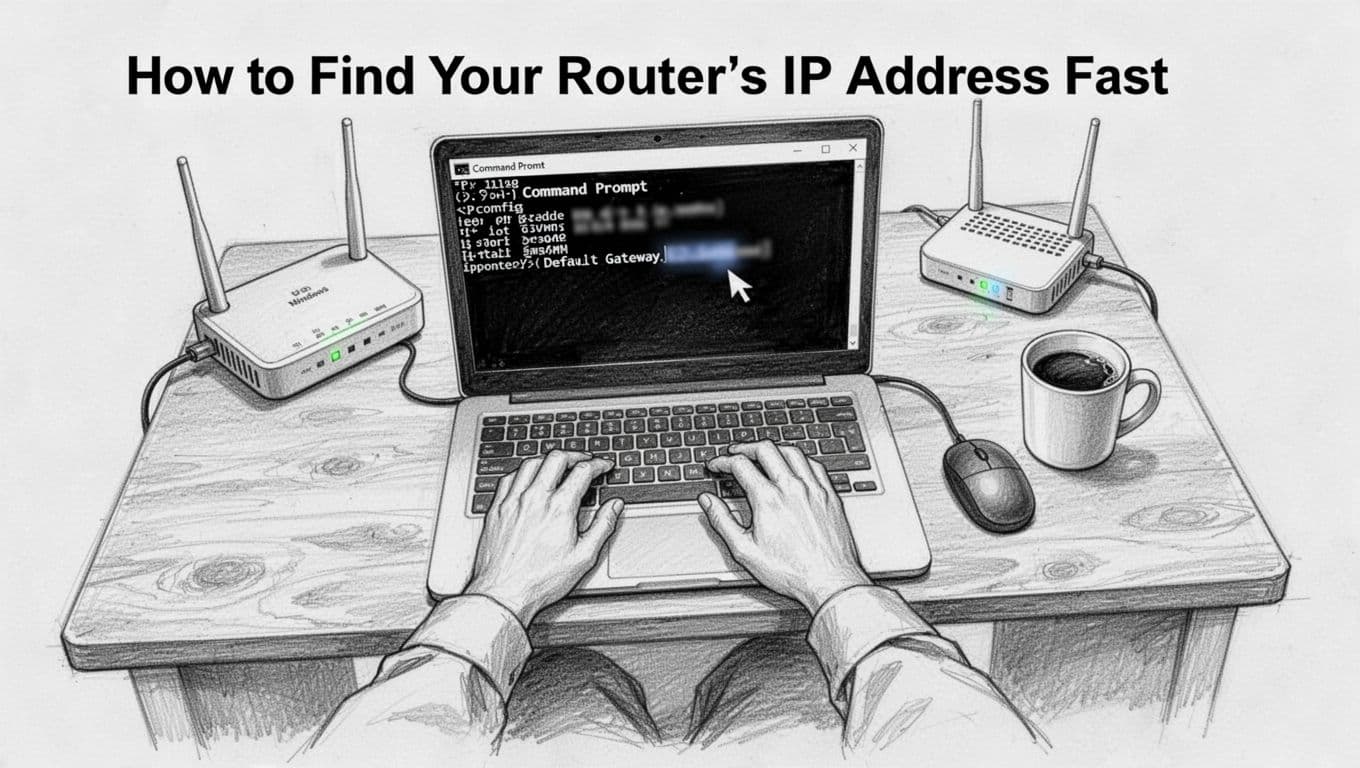
How to Find Your Router’s IP Address Fast
Start by connecting your device to your home router. Use Wi-Fi or Ethernet, but stay on your own network. This step matters because your device needs to know where your router sits.
Windows (CMD): quickest method
- Open Command Prompt.
- Type this command, then press Enter:
ipconfig - Look for Default Gateway.
- Copy the IP address next to it. This is the router login address.
If the page doesn’t load, try typing the IP into a different browser, or refresh once more. Also check your Wi-Fi connection. If you switched networks, your Default Gateway can change.
Mac (System Settings): view your network details
- Open System Settings.
- Go to Network.
- Click your active connection (usually Wi-Fi).
- Find Router or Default Gateway.
- Use that IP address in your browser.
When you see multiple network entries, pick the one marked as Connected. Otherwise, you might try the wrong gateway and hit a “can’t reach this page” error.
Phone: tap Wi-Fi details
On iPhone and Android, you can find the gateway from your Wi-Fi info screen.
- Open Wi-Fi settings
- Tap the connected network name
- Look for Router, Gateway, or Default Gateway
- Copy that IP address
If it doesn’t show up, you can still try the common defaults below, but start with your device’s gateway first.
Top IPs to try if you’re stuck
In the US, most home routers use one of these as the default gateway:
- 192.168.1.1
- 192.168.0.1
You’ll also see other common ones like 192.168.86.1 for some Google Nest setups. For a broader brand-by-brand login approach, see How to log into your router for any brand. If you want a quick list of what to try first, router login IP guidance can help too.
Troubleshoot when the admin page won’t load
When the browser fails, don’t panic. Most of the time, it’s a simple mismatch. Try these fixes in order:
- Confirm you’re on the router’s Wi-Fi (or plugged into the router by Ethernet).
- Try the other common IP (192.168.1.1 vs 192.168.0.1).
- Close and reopen the browser, then test again.
- Turn off VPN or private DNS on your device (it can block local addresses).
- If you recently changed your router’s network name, re-check your current connection.
If you still can’t reach the login page, it’s usually time to move to the reset option later. You’ll handle that after you try the correct IP.
Logging In and Locating the Admin Settings
Once you have the router IP, the next step feels simple: open a browser and log in to the router admin panel. Still, the menu names can vary a lot by brand, so keep your eyes open.
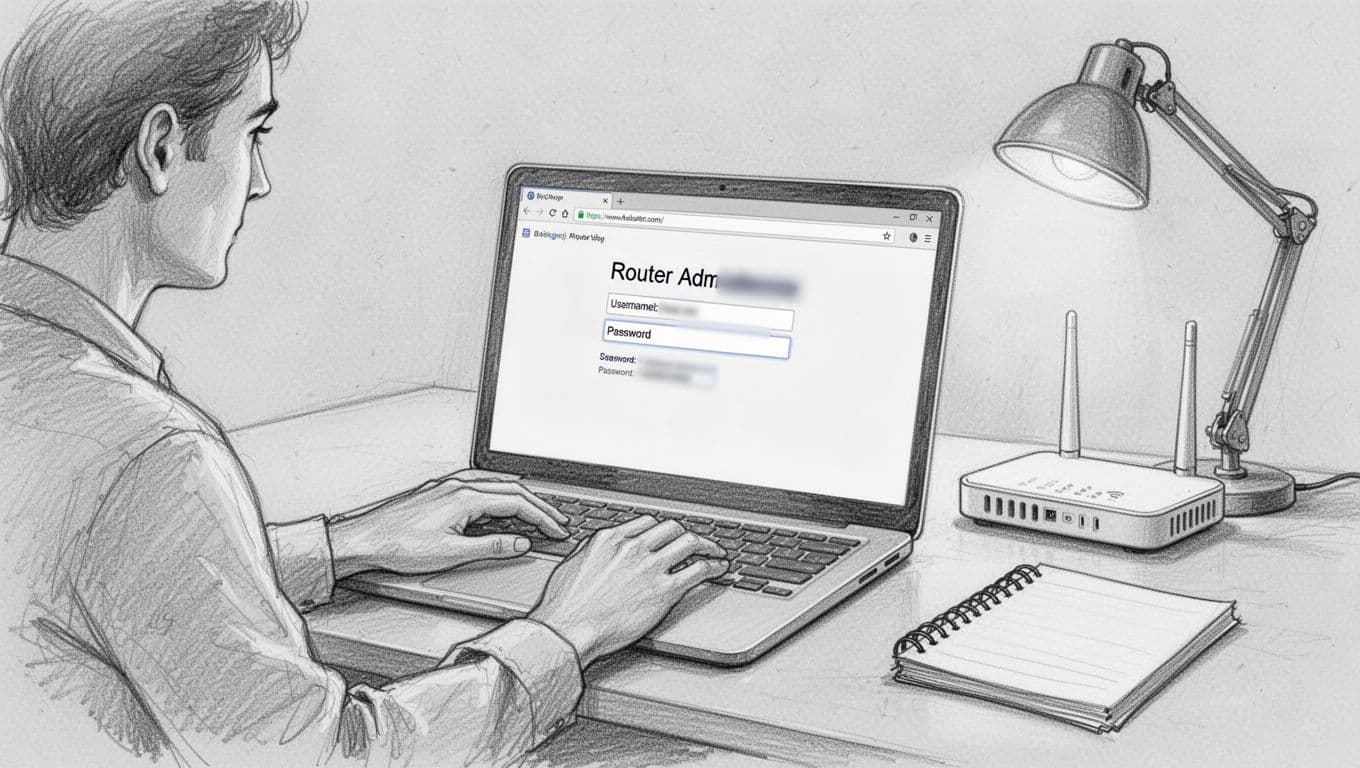
Log in to the router admin panel
- Open your browser.
- Type the router IP address you found (for example,
192.168.1.1). - Press Enter.
- Enter the router admin username and password.
If you’ve never changed them, the default login usually appears on the router label, on a quick-start sheet, or in the setup guide. If you forgot and don’t know the current admin login, you may need to reset the router (covered in the next subsection). For many models, you can also cross-check defaults using trusted guides like How to find router IPs before you guess.
Find the admin settings menu (what to look for)
After login, you’ll usually see a left menu or top tabs. Look for pages that sound like account control or management.
Common menu paths include:
- Administration
- Management
- Advanced
- System
- Security
Inside those areas, the exact label often changes. Search for words like:
- Admin Password
- Router Password
- Account
- User Management
- Change Login
- Device Credentials
Once you find the right screen, you’re looking for fields that control the router admin username and password. Important detail: this is not your Wi-Fi password. This part only controls access to the router settings page.
When you update it, do it like you’re locking up your keys. Use a username that’s not obvious (for example, myhomeadmin) and use a strong password you don’t reuse.
If defaults fail: reset your router
If the login page rejects the default admin username and password, you have two paths: confirm the label details, or reset the router to factory settings.
A reset clears the admin login back to defaults and returns many settings to factory levels. That can include Wi-Fi names and any custom port rules, so treat it like a fresh start.
Use this general approach:
- Press and hold the router reset button for 10 to 30 seconds
- Release it when the lights change
- Wait for the router to reboot fully
- Log in again using the default admin credentials from the label or manual
Then update your admin username and password right away.
Save, restart, and test access
After you change the admin username and password:
- Click Save or Apply.
- Wait for the router to restart if it asks.
- Test by logging out, then logging back in with the new credentials.
If you changed the admin login correctly, the router should accept your new username and password. If it doesn’t, double-check you saved the changes on the correct admin page, then try again after a reboot.
The admin login protects your router settings. The Wi-Fi password protects who can join your network.
Quick checklist before you finish
Before you leave the router page, confirm three things:
- You saved the change (some screens require an Apply step).
- Your new password works (test login once).
- You did not confuse Wi-Fi password with admin login (they’re separate).
Tips for Picking Bulletproof New Router Credentials
Once you change your default router login, the next risk is simple: picking a new username and password that attackers can guess. Even a “new” login can fall fast if it looks familiar. Think of your router admin account like the key to your whole house, not just the front door.
Start with two goals: make the password hard to crack and make it hard to reuse elsewhere. Then, confirm the change worked by signing out and logging back in.

Choose a password that’s long, random, and truly unique
A bulletproof router admin password is usually not about “complex” characters. Length and randomness matter more than fancy patterns. If you keep it short or familiar, bots will test it quickly.
Use these rules when you create your new credentials:
- Aim for 12+ characters, ideally 16 or more.
- Mix upper and lowercase letters so it’s not one-note.
- Add numbers and symbols (but don’t rely on symbols only).
- Avoid personal info, like names, birthdays, or your street.
- Make it unique, meaning it shouldn’t match your email or any other logins.
If you want a simple pattern that still stays strong, use a passphrase made from unrelated words plus a number and symbol. For example, BlueMoon$Coffee7 is better than Coffee!2026 because it doesn’t follow one predictable theme.
Also, do not reuse your Wi-Fi password. The router admin account controls settings, while the Wi-Fi key controls access to the network.
Use a password manager so you don’t “fix it later”
People often change router defaults, then write the new password on a sticky note. That’s like locking your front door, then taping the key to the mailbox.
Instead, use a password manager. It can generate a random, unique password, save it, and fill it when you need it. You only remember one master password, and the rest stays protected.
If you want a practical refresher on simple Wi-Fi hardening steps and why password changes matter, see HP’s remote work home network tips.
Treat the admin username like part of the password
Many people focus on the password and ignore the username. Attackers still try common usernames first, especially when the password is also weak.
Choose an admin username that doesn’t look like a default. Avoid admin, administrator, or your router model. A good goal is something that doesn’t reveal any personal data, like myhomeadmin or billingdesk007.
Then keep it consistent. After you change it, store it somewhere safe and avoid experimenting while you’re troubleshooting other settings.
Keep other router security settings aligned with your new credentials
Strong admin credentials help a lot, but only if the rest of your setup doesn’t undermine it. After you update the login, take a few minutes to harden the router in ways that reduce the chance of repeat trouble.
- Update firmware so you close known bugs and weaknesses.
- Use WPA3 for Wi-Fi (or WPA2 if WPA3 isn’t available).
- Change the SSID if your network name still shows a default or your address.
- Disable remote management unless you truly need it.
- Enable 2FA for router access if your model supports it.
Think of these as extra locks on the same door. Your new admin login is the main lock, but firmware, encryption, and remote settings decide how many other ways someone can get in.
If you only change the password but leave remote admin on, you still leave a side gate open.
For additional beginner-friendly guidance, you can also review Fing’s home network security tips.
Stuck? Easy Fixes for Common Router Login Change Hiccups
Changing your router default login should feel like swapping the lock on your front door. If things go sideways, it’s usually a small mix-up, not a broken router. Most issues fall into a few common buckets: the wrong router address, a login that no longer matches, or the admin page not loading.

Wrong IP address: the “can’t reach this page” problem
When the browser says the page won’t load, the most common cause is the wrong IP address. After all, you might be knocking on the wrong door.
Start with the simple truth: your device must use the router as its gateway. If you recently rebooted the router or changed networks, the default gateway can change.
Use the quick checks below:
- Windows: open Command Prompt, run
ipconfig, then copy the Default Gateway value. - Mac: go to System Settings, open Network, then check the Router (gateway) for your active Wi-Fi.
- Phone: open your Wi-Fi details screen, then look for Router or Gateway.
If you guessed the IP from memory, stop guessing. Re-check it from your device and then try again in a fresh browser tab. If you still fail, try a different router login page entry point (some setups use routerlogin.net or a different local host name).
If you want a focused reference, see router login IP troubleshooting steps.
Login fails after changing the admin username
So you changed the admin username and password, and now it refuses the new login. That usually means one of three things: you typed it wrong, you saved on the wrong screen, or the router didn’t apply the change.
Try these fixes in order, because each one rules out a bigger problem:
- Confirm you saved (click Apply or Save). Many routers won’t save automatically.
- Try again with exact spelling. Router fields often treat letters carefully. Copy and paste helps.
- Log out fully. Close the admin tab, then open a new one and log in again.
- Restart the router. Power cycle it (unplug 30 seconds), then try the login after it boots.
If the router still rejects your credentials after several careful tries, don’t keep typing. At that point, the safest move is a reset (next section).
Admin page won’t load at all (blank page, timeout, refresh loop)
Sometimes the login page won’t open, even if the IP is right. In those moments, think “browser path issue,” not “router broke.”
Work through these fixes:
- Switch to a different browser (Chrome, Edge, Firefox).
- Try incognito/private mode to avoid cached login data.
- Test from another device on the same Wi-Fi.
- Avoid VPN or private DNS while you test.
- If you can, connect by Ethernet for one test.
Often, the fastest fix is simply using a different device and browser. That tells you whether the issue sits with your computer.
If you want a Windows-specific angle, check router admin page not opening fixes. If your issue looks browser-related on Windows, you can also try can’t access router admin page fixes on Windows 11.
Forgot the new admin password: reset without panic
Forgetting the new admin password is common. It happens because people change it once, then rarely use it again. Still, a reset feels scary, even when it’s straightforward.
Here’s the safe approach:
- Find the reset button (often a small pinhole on the back).
- With the router powered on, press and hold it for 10 to 30 seconds.
- Wait for the router to reboot fully (usually 2 to 5 minutes).
- Log in again using the default admin credentials from the router sticker or manual.
- Update the admin login again right after you regain access.
Keep in mind: a factory reset wipes custom settings. That can include your Wi-Fi name, Wi-Fi password, and any special setup. If you rely on custom DNS, port rules, or guest Wi-Fi settings, plan to re-enter them.
If you want an extra reference for how to regain access when the password doesn’t work, see router login password not working steps.
When the router asks extra questions after failed logins
Some router setups get strict after repeated failed attempts. You might see a prompt for a serial number or a setup answer you never saved.
When you hit that wall, you generally cannot “wish” your way back in. Resetting the router usually restores default access and lets you set a new admin login.
Brand-specific hiccups (how to search your exact model)
Router screens look similar, but details differ by brand and model. Instead of fighting menus, match the help to your hardware.
Use this search pattern:
[brand] [model] admin login change password[brand] [model] reset button hold 30 seconds[brand] [model] admin password not working
If you have a used router, defaults may already be changed. In that case, the sticker might not help, and a reset becomes the cleanest path.
When to contact support (and what to say)
Most login issues fix with the steps above. Yet sometimes, you need your ISP or the router maker, especially if you have a locked setup or firmware oddities.
Contact support if:
- The admin page loads on no devices, including Ethernet.
- The reset does not restore default login access.
- You suspect a firmware update failed or the device is stuck booting.
- Remote management or ISP-level controls block access.
When you call, say what you already tried: the router IP check, the exact error message, and whether a power cycle or factory reset worked. That keeps the call short and stops repeated basic questions.
Conclusion
If you started this guide because your router still uses a factory login, you’re already thinking the right way. Switching the default admin username and password closes the easiest entry point, and surveys from 2025 to 2026 still put the number of unchanged defaults around 81% to 86%. That means your change helps your whole household, not just your own account.
Do it now, while it’s fresh: log back in with your new admin details, save the change, and then move to Wi-Fi safety. Next, set a strong Wi-Fi password (different from the admin login), and if you have guests over, turn on a guest network so visitors do not share your main devices.
You just took minutes to reduce the risk of quiet break-ins and bad device behavior. Ready to lock down your network?