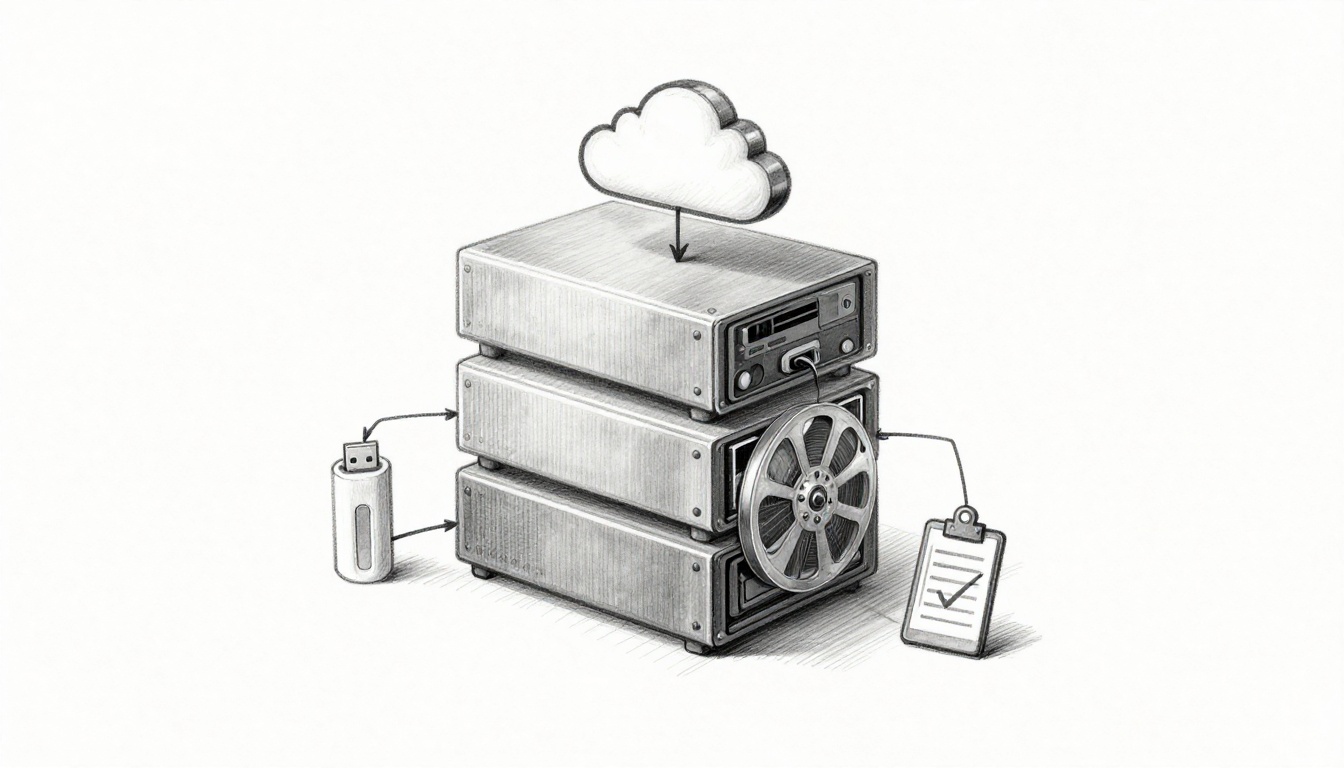
You can have backups, and still lose data. That’s what makes ransomware so cruel, it doesn’t just steal files. It tries to destroy or encrypt your recovery points too.
In the first months of 2026, ransomware kept hitting U.S. organizations at a high pace. For example, Bitdefender’s analysis of early 2026 reporting shows a steady stream of attacks against U.S. targets, across many industries. You can’t treat backups like a one-time chore anymore. You need a plan that keeps working after things go wrong, not only when life is calm.
For context, see ransomware attacks targeting US organizations in 2026.
The 3-2-1 backup strategy has been around for years: keep 3 copies on 2 different media types, with 1 copy offsite. The catch is that modern threats often focus on the backup chain. That’s why the 2026 upgrade is 3-2-1-1-0, which adds two extra defenses: immutable (or air-gapped) copies and zero-error verification through restore testing.
In other words, you’re building a backup system like a fire drill. It’s not enough to have extinguishers. You have to make sure they work when you pull the pin. And you have to keep at least one extinguisher where the fire can’t reach it.
Below is a practical, step-by-step approach for personal computers and small offices. You’ll also learn which tools to use, how to automate schedules, and what mistakes leave your data exposed.
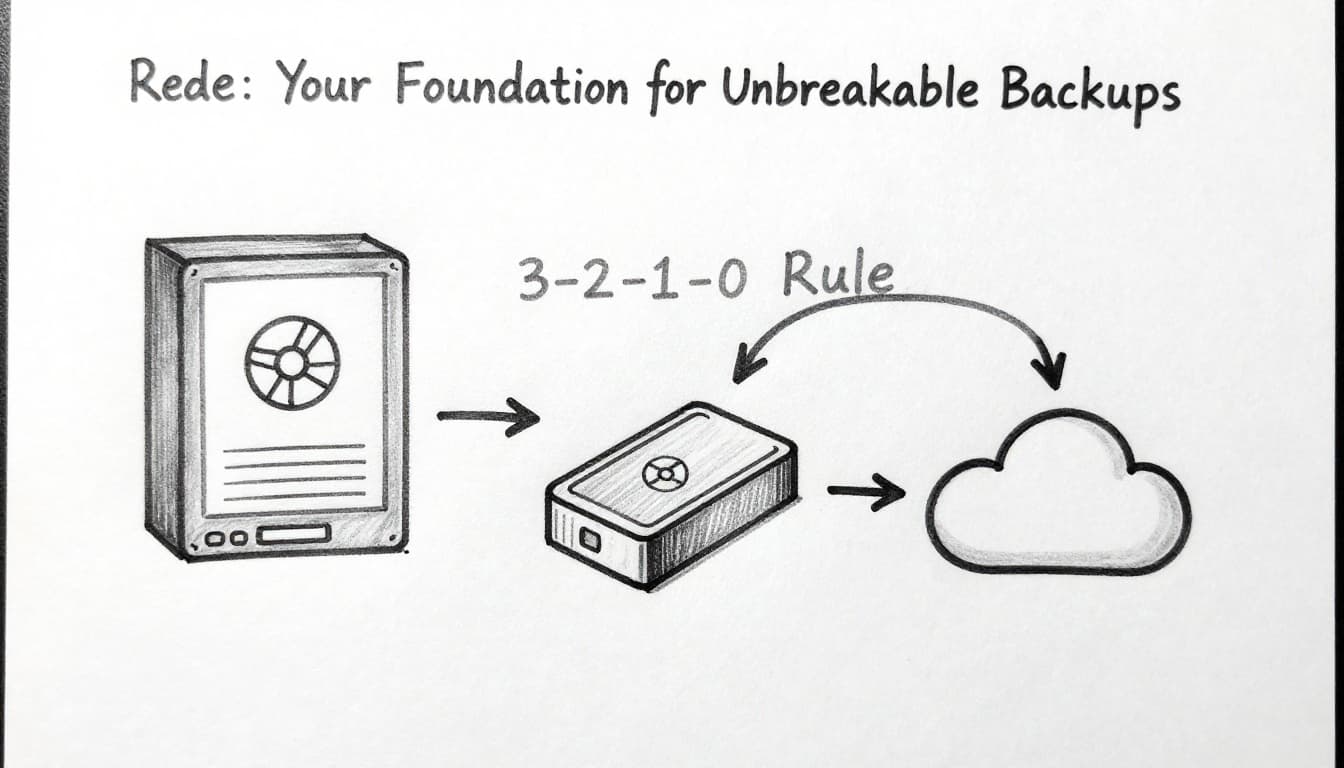
Break Down the 3-2-1-1-0 Rule: Your Foundation for Unbreakable Backups
Think of backups as layers of protection. One layer saves you from a hardware failure. Another layer saves you from a deletion mistake. The last layer saves you when the “backup” itself gets attacked.
Here’s the modern rule in plain terms:
- 3 total copies: your original files plus two backups
- 2 different media types: for example, a drive and a cloud service
- 1 offsite copy: stored somewhere else, not in the same place
- +1 immutable or air-gapped copy: a backup you can’t change or delete, even if ransomware hits
- +0 errors: regular restore tests until your backups consistently work
Many backup experts recommend the 3-2-1-1-0 framing because it fits modern risks better than classic 3-2-1 alone. TechTarget explains how the rule updates “two different media types” into a system that’s easier to apply with today’s backup targets like object storage and immutability controls. See how the 3-2-1-1-0 rule reflects modern needs.
Also, note that versions of this strategy exist. Backblaze breaks down the differences between 3-2-1, 3-2-1-1-0, and other variations so you understand what you’re actually buying into. Read 3-2-1 vs 3-2-1-1-0 vs 4-3-2.
How 3-2-1 Protects Against Hardware Failures and Local Disasters
Classic 3-2-1 is still valuable. It mainly protects you from “ordinary life” failures.
If your laptop hard drive dies, you lose the original. If you drop an external drive, you lose one backup. If a water leak hits your home office, both local copies might get ruined.
With two media types, you avoid a single-point failure. A disk failure can’t wipe out a cloud backup. A house fire can’t touch a remote copy.
Here’s a common home setup:
- Original files on your PC
- Backup 1 on an external HDD or NAS
- Backup 2 in a cloud service
- Offsite storage so a local disaster can’t take everything
The idea is simple: backups should not live in the same “box.” When everything depends on one box, that box becomes your risk.
The 2026 Upgrade: Adding Immutable Copies and Zero-Error Testing
Ransomware changes the math. Attackers often try to delete or encrypt backup data so you can’t recover.
So 3-2-1-1-0 adds a copy that’s immutable (locked down) or air-gapped (offline). Immutable backup usually uses retention locks or write-once storage rules. In practice, ransomware accounts often can’t edit or remove those snapshots, even if they compromise your main system.
On the verification side, “backup” isn’t the same as “restore works.” That’s where +0 errors comes in. You need routine restore tests, not just backup job success.
Acronis explains immutable backup in a way that’s easy to map to real setups. For a deeper definition and how it’s implemented, see what immutable backup means.
Here’s the key gotcha:
A backup that can’t be restored is just stored disappointment.
Assess Your Data Needs and Choose the Best Tools for 2026
Before picking software, list what you actually need to protect. Otherwise you’ll back up everything, then ignore restore testing. Worse, you’ll forget the one folder that matters.
Start with categories:
- Photos, videos, and personal documents
- Work files (spreadsheets, design files, project folders)
- Email attachments and address books
- Browser downloads and password vault exports
- Business data (contracts, invoices, client files)
If you use SaaS like Microsoft 365, remember that your “data” includes those cloud apps too. You need a backup or export path for them, not only your laptop files.
Then match tools to your reality. Most people want hybrid: local backups for fast restores, plus offsite backups for disasters.
Here’s a simple comparison so you can plan without getting lost.
| Option | Free vs paid | Best for | Backup style |
|---|---|---|---|
| EaseUS Todo Backup | Free tier available | Personal Windows basics | Local drive + system/file backups |
| AOMEI Backupper | Free tier available | Simple local backups | Schedules + disk/file modes |
| Acronis Cyber Protect | Paid | All-in-one for Windows and Mac | Local + cloud, plus stronger recovery features |
| Backblaze | Paid | Hands-off cloud backup | Cloud-only, easy personal use |
| Veeam | Paid (business) | Teams with servers/VMs | Enterprise backups and recovery |
If you want a reality-check on what’s been tested recently, PCMag publishes updates on the best backup software and services for 2026. Use reviews as a starting point, not the final decision.
Free Tools to Get Started Without Breaking the Bank
Free tools can work well when your goal is “get backups running this week.” They’re a solid first step for personal setups.
EaseUS Todo Backup and AOMEI Backupper both offer free versions for common Windows needs. You can schedule backups, back up folders, and in many cases protect disks or partitions (depending on the edition). However, free tiers often lack the more advanced pieces you need for 3-2-1-1-0, like strong immutability controls or robust verification workflows.
So use them for what they do best:
- Building your first reliable local backups
- Testing restore speed
- Creating an offsite plan using your own cloud destination
Pairing a free local backup tool with a cloud sync target can cover some offsite needs. Still, do not assume “cloud sync equals backup.” Sync can copy both clean files and corrupted or deleted versions. That’s why immutable options matter later.
For many people, the smartest path is simple: start free, then upgrade when you feel the pain during restore tests.
Proven Paid Options for Immutable and Ransomware-Proof Backups
Paid tools tend to add three things that free setups often miss:
- Better automation and monitoring
- Stronger security settings (encryption, MFA options, retention rules)
- Recovery features that work after disaster
For cloud-first personal backup, Backblaze is known for simplicity. You set it, it runs, and it focuses on cloud copies.
For “everything in one place,” Acronis offers local and cloud backup options with ransomware protection themes. For small business, Acronis also fits well when users need guidance, not configuration puzzles.
For organizations that manage many endpoints and want more control, platforms like NinjaOne can help with admin visibility. For deeper enterprise features, Veeam is widely used in server and VM environments. These are also places where immutable or locked retention policies show up more often.
Pick your tool based on what you can verify. If your backup can’t be restored quickly, it’s not a backup plan. It’s a storage plan.
Build Your Strategy Step by Step: From Setup to Automation
A good backup strategy is less about one app and more about habits. If you do this once, you’ll still be stuck when the next disaster hits.
Use this order. It reduces rework. It also makes your setup easier to audit later.
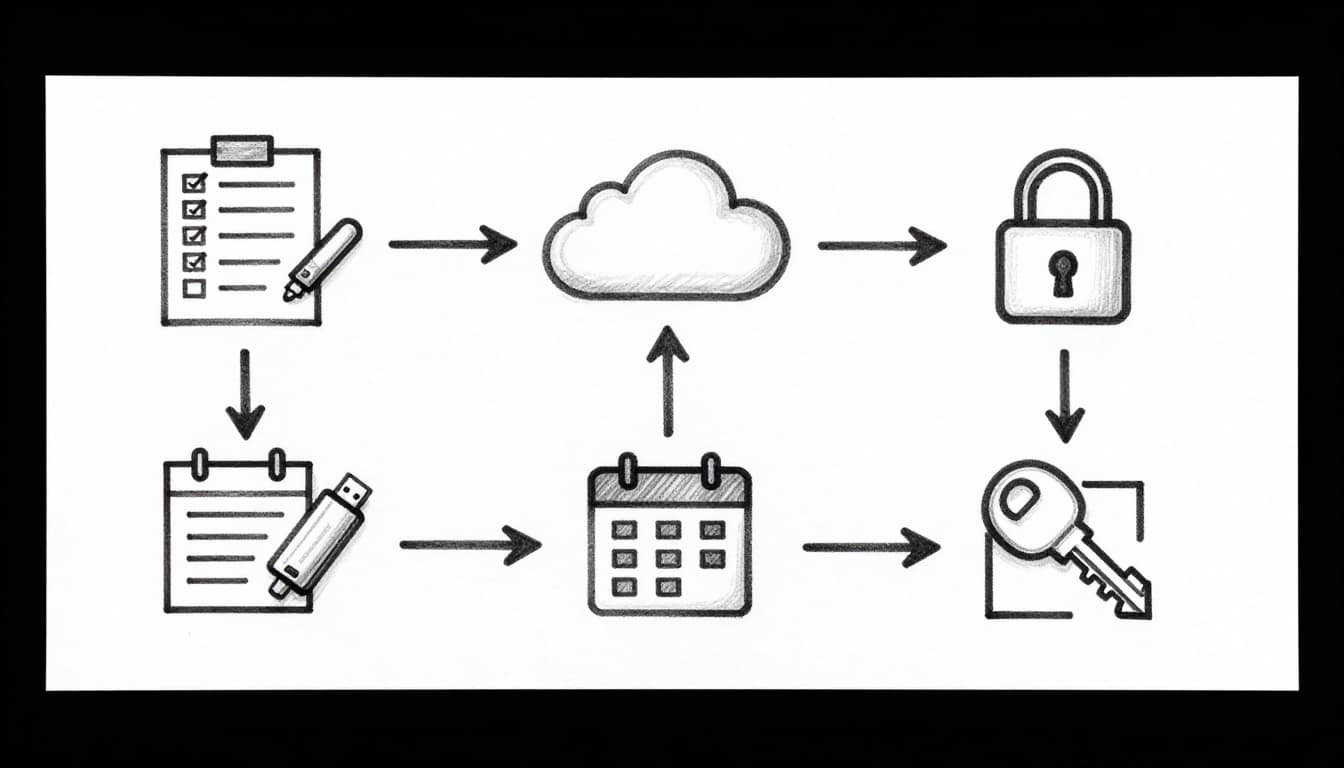
Step 1-3: Make Your Three Copies on Diverse Media
- Inventory your data Write down what matters most. Include cloud apps. Include shared folders on shared PCs.
- Create a local backup copy (2nd copy overall) Use an external drive, or a NAS like a Synology box if you have one. Schedule it so it updates as files change.
- Set up your offsite copy (3rd copy overall) Choose a cloud backup service, or replicate to a remote target. Make sure offsite data isn’t overwritten too aggressively.
When you set this up, remember the “diversity” part. A USB drive in the same desk drawer as your PC fails when the desk catches fire.
For a small office example: one NAS copy for fast restores, plus one cloud copy stored offsite. Then add immutability next.
Step 4-6: Lock It Down with Immutability, Automation, and Security
- Add an immutable (or air-gapped) copy If your cloud backup supports write-once retention, enable it. If you can do air-gapping, keep at least one offline backup you only update occasionally.
- Automate schedules and monitor results Backups should run without you thinking about them. Use alerts so you hear about failures early.
- Encrypt everything that supports it Encryption protects you if drives get lost or stolen. For extra safety, use your own encryption key when available.
Automation reduces human error. Security reduces what attackers can do with your access. Immutability reduces what ransomware can change.
Then comes the part most people skip: verification.
Test Regularly and Dodge These Common Backup Traps
If you’ve ever tried to restore a “backup” and found missing files, you already know the cost of skipping testing.
Testing doesn’t need to be complicated. It does need to happen on a schedule. Also, your tests should cover the recovery path you care about.
Run Foolproof Tests to Confirm Your Backups Work Every Time
Use a repeatable routine:
- Pick a file or folder that represents real value.
- Restore it to a test location (a folder you can throw away later).
- Open the restored file and confirm it isn’t corrupted.
- Check timestamps so you know you’re restoring the right version.
- Repeat monthly with a larger sample.
- Do a deeper test quarterly if you can.
For a system-level restore, do fewer tests but more meaning. For example, restore a small set of critical folders to a fresh machine or VM, if possible.
Some tools also support automated integrity checks or verification steps. If your software offers “verify backups,” enable it. However, automated checks aren’t a full replacement for actual restores.
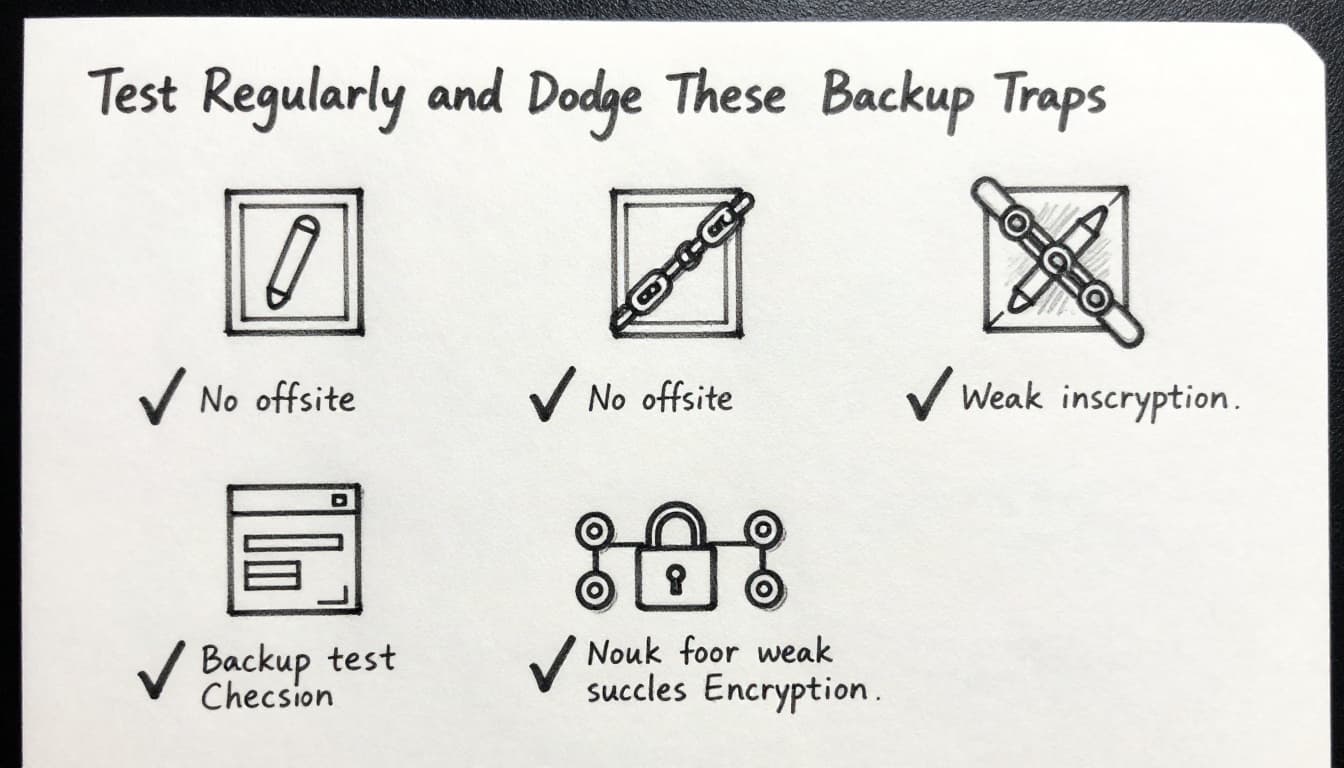
Top Mistakes That Leave Data Vulnerable and Fixes That Save You
Here are common traps that break real-world recovery. Each one has a fix you can apply quickly.
- Skipping restore tests: Run a weekly restore test for a few files. Make “restore success” your metric.
- Keeping all copies in one place: Add offsite storage. Use cloud or a remote drive. No exceptions.
- No immutable or offline protection: Turn on immutable retention or add an air-gapped copy. If ransomware can delete backups, you don’t have backups.
- Relying on sync alone: Sync can replicate deletion and corruption. Use backup features, not just sync.
- Weak encryption or shared access: Turn on encryption, and limit who can change settings. Use MFA for cloud admin accounts.
- Forgetting SaaS data: Microsoft 365, Google Workspace, and other SaaS apps need backup plans too.
- Ignoring alerts and failed jobs: Make monitoring part of your routine. A failed backup job is worse than no job.
If you want a simple rule for day-to-day management, treat backups like a utility. You don’t “feel confident” about electricity. You trust it because it has testing and monitoring behind it.
Conclusion
Ransomware and disasters don’t wait for you to “get around to backups.” That’s why a verified 3-2-1-1-0 strategy matters. You’re building multiple copies, using different storage types, keeping at least one copy offsite, and adding immutability plus restore testing.
If you do just one thing after reading this, it’s this: restore test every month until you’ve proven recovery works. Then automate the schedule so you don’t fall back into manual guesswork.
Pick one tool that fits your setup, set it up this week, and schedule your next test. You’ll spend 30 to 60 minutes now, and save hours during a crisis. Use the printable 3-2-1-1-0 verification checklist alongside this article, then keep it running.